
How to Protect Your Computer Table
Your computer table is more than just furniture. It is the foundation of your productivity, gaming, or creative setup. But daily use brings risks: scratches from mouse movement, spills from coffee, heat damage from laptops, and even structural threats from unsecured PC towers. Without proper protection, your desk can degrade quickly, affecting both its lifespan and your equipment’s performance.
This guide reveals proven, actionable methods from transparent surface shields to anti-tip solutions and standing desk safety protocols. You will learn how to protect every inch of your workspace so your desk stays functional and attractive for years.
Use Clear Protective Mats for Surface Defense

The fastest and most effective way to shield your computer table is with a clear PVC protective mat. These mats act as invisible armor, guarding against scratches, spills, and minor heat exposure while preserving the original look of your desk. This is especially important for wood, oak, or marble finishes.
Choose Heavy-Duty PVC Mats
Premium thick PVC resists yellowing and clouding over time, unlike thin vinyl alternatives. A standard size like 16 x 32 inches covers most work zones, and buying in sets ensures full coverage across larger surfaces. The crystal-clear material lets your desk’s natural grain show through while providing robust protection.
The functional characteristics of quality PVC mats include anti-scratch properties that prevent abrasions from mouse movement, keyboard typing, and writing instruments. They also offer water and stain resistance, with a non-porous surface that resists coffee, ink, and minor chemical spills. This prevents liquid absorption that causes warping or staining in wooden desks.
Prevent Scratches and Spills
Place PVC mats where your arms rest, where peripherals sit, or along high-traffic desk edges. The non-porous material blocks liquids from soaking in, which is crucial for wooden desks prone to warping. Heat from laptops or warm mugs is also absorbed by the mat, reducing direct contact with sensitive surfaces.
Clean Without Causing Damage
Wipe the mat with a soft, damp cloth to maintain clarity. Avoid abrasive cleaners or scrubbing pads because they scratch the surface and create haze. After cleaning, dry thoroughly to prevent slipping or water marks. Never use solvents or alcohol-based wipes unless specified by the manufacturer, as these can degrade the PVC over time.
Apply Rigid Covers for Heavy-Duty Protection

For stronger protection in high-impact zones, use clear acrylic sheets or cutting mats. These rigid alternatives offer harder barriers that resist cuts, dents, and heat better than flexible mats.
Use Acrylic Sheets for Maximum Durability
Purchase clear acrylic from hardware stores like Home Depot and custom-cut it to fit any desk size. One unique benefit is the ability to slide photos, artwork, or reference notes underneath for a personalized workspace that stays protected. The hard, wipeable surface resists impact compared to thin vinyl.
Add Cutting Mats for Craft Zones
If your desk doubles as a crafting or drawing station, a plastic cutting mat is ideal. Designed to endure blade contact, it prevents deep gouges from utility knives or pencils. Its textured surface also keeps objects from sliding. These mats are easy to replace and perfect for hybrid workspaces where precision tasks are frequent.
Secure Your PC Tower to Prevent Accidents

A loose PC tower is a serious hazard. If it tips, it can crack the floor, damage internal components, or injure someone. Several methods exist to anchor your tower securely.
Bolt the Case Directly to the Desk
Drill small holes through the metal base of the case and into a wooden desk, then secure with hex bolts, washers, and nuts. This method is permanent but highly effective in high-traffic areas or earthquake-prone zones. Avoid this on glass or laminate desks to prevent cracking. The typical PC case metal is 1 to 2 mm thick, drillable with standard tools.
Use L-Brackets for Corner Locking
Screw one side of an L-bracket into the desk edge and the other against the PC case. This creates a strong corner lock that prevents tipping without drilling through the case. Choose low-profile brackets to keep the setup discreet. Add rubber padding between the metal and case to avoid scratches.
Choose Non-Drilling Solutions for Renters
If you rent or want a removable solution, several options exist that do not damage your desk.
Try Magnetic Hold-Downs
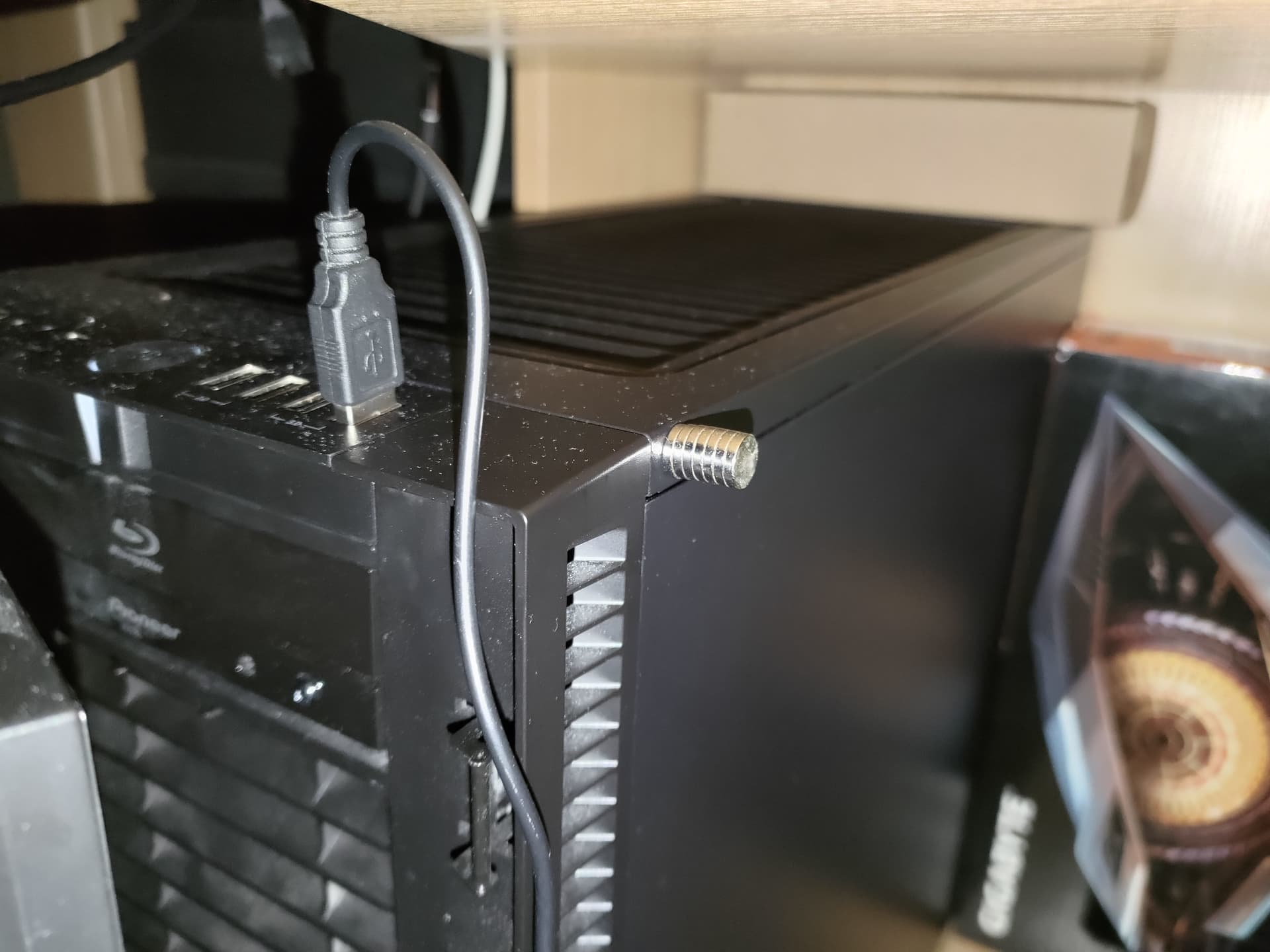
Attach steel plates to the underside of the desk and strong neodymium magnets to the bottom of the PC feet. The magnetic force keeps the tower firmly in place but allows easy removal when needed. Ensure the magnets match the size of the case feet for full contact and maximum hold. You can repurpose hard drive magnets for this purpose.
Use C-Clamps or Vertical Rods
C-clamps with rubber-lined jaws can grip the desk edge and act as physical barriers to stop the PC from sliding. Position them on the side where movement is likely. Alternatively, mount vertical M6 or M8 metal rods beside the tower to block falls. Sleeve the rods with rubber tubing to protect the case. These are excellent for corner desks near walkways.
Elevate or Mount the PC Away From Floor Hazards
Placing the tower on the floor exposes it to dust, pet hair, and carpet fibers, which clog fans and cause overheating. Alternative placements solve this problem.
Lift the PC With a Stand
Place the tower on a 1-inch wooden block or dedicated stand. This improves airflow, reduces intake contamination, and lowers the center of gravity for better stability. Keep the PC away from foot traffic to avoid kicks or vacuum cleaner damage.
Mount Under the Desk
Under-desk CPU holders save surface space and reduce bumping risks. They are ideal for small offices or minimalist setups. Use reinforced screws and backing plates to anchor the mount, especially on thin desks. Always leave 30 to 60 centimeters of cable slack if you have a standing desk, so wires do not strain during height changes.
Safeguard Standing Desks With Anti-Collision Systems
Electric standing desks come with built-in anti-collision systems as your first line of defense. These sensors detect obstructions when the desk lowers, preventing damage to your PC, cables, or the desk itself.
Understand How Anti-Collision Technology Works
Gyroscopic models sense tiny tilts when the desk hits an object. Current-sensing types monitor motor load and detect resistance. When either system identifies an obstruction, the desk stops and reverses automatically. Ensure your desk meets UL 962 safety standards for reliable performance.
Calibrate for Optimal Protection
Adjust the anti-collision sensitivity settings, starting with the highest sensitivity. Test monthly by placing a foam block or rolled towel in the desk path and lowering it. The desk should stop on contact. Run multiple up-down cycles to confirm consistency.
Maintain Proper Clearance and Cable Slack
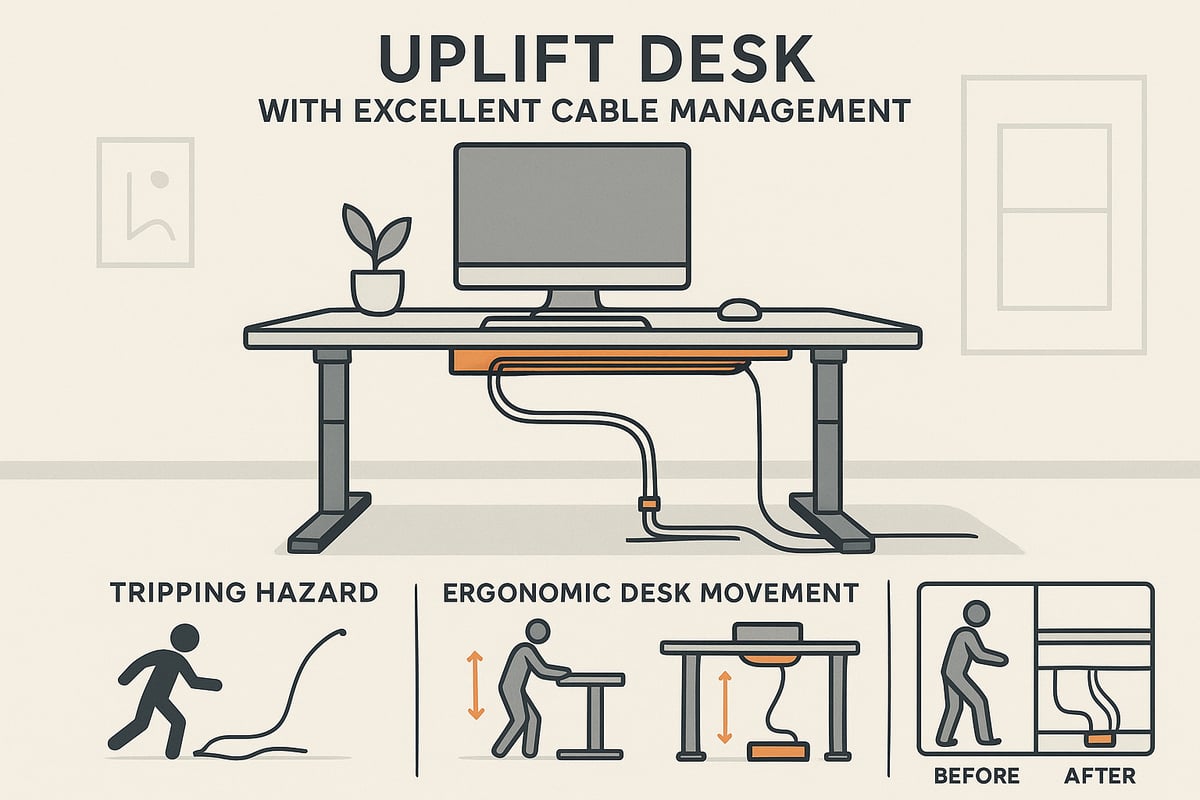
Always leave 2 to 3 inches of space above the PC tower for airflow and movement. Pinched components can overheat or get crushed. Route cables through trays and leave generous slack to accommodate full desk motion. Use magnetic or Velcro ties to keep wires tidy without restricting movement.
Test and Maintain Desk Safety Features Regularly
Even the best safety systems need attention. Regular testing and maintenance keep your protection working effectively.
Perform Monthly Safety Checks
Place a foam block under the desk path and lower it. The desk should stop on contact. Run several up-down cycles to ensure consistent sensor performance. If false stops occur, reduce sensitivity or check for snagging cables. If it fails to stop, increase sensitivity or use a firmer test object.
Inspect Fasteners Quarterly
Every three months, check all screws, brackets, and mounts, especially on standing desks. Vibration from daily use can loosen connections. Tighten any hardware that feels wobbly. On under-desk mounts, verify that backing plates are still secure and the desk surface shows no stress cracks.
Organize Cables to Prevent Damage and Accidents
Loose cables are dangerous. They can pull on ports, trigger false anti-collision stops, or get caught in moving parts.
Use Cable Trays and Ties
Install an under-desk cable tray to contain power cords, USB lines, and monitor cables. Use Velcro straps for flexibility and easy adjustments. Keep cables parallel to the desk legs to minimize tension during height changes. Avoid zip ties because they are difficult to adjust.
Inspect Cables Monthly
Check cables monthly for fraying, stretching, or pinching, especially near desk joints or mounts. Replace damaged cords immediately. A single broken wire can cause short circuits or disrupt your entire setup. Label cables if you have multiple devices for faster troubleshooting.
Maintain Your Protective Setup for Long-Term Results
Protecting your computer table requires ongoing care. A consistent maintenance schedule extends the life of both your desk and protective measures.
Clean Mats and Covers Properly
Wipe PVC mats weekly with a damp cloth. For acrylic, use a cleaner formulated for plastics to prevent hazing. Never use ammonia-based products like Windex because they cloud the surface over time. Dry thoroughly after each cleaning.
Customize Your Workspace
Turn protection into personalization by sliding calendars, artwork, or motivational quotes under a clear acrylic sheet. This keeps them visible and protected from smudges or tears. Change them seasonally to refresh your workspace without altering the desk itself.
Frequently Asked Questions About Protecting a Computer Table
What is the best way to protect a wooden computer table from scratches?
Use a heavy-duty clear PVC protective mat. These mats provide a transparent barrier that prevents scratches from mouse movement, keyboard typing, and placed objects while preserving the wood’s natural appearance. Clean regularly with a damp cloth and avoid abrasive cleaners.
How do I stop my PC tower from falling off my desk?
Secure the PC using L-brackets, neodymium magnets, or bolting directly to the desk surface. For renters, magnetic hold-downs or C-clamps provide strong protection without drilling. Choose the method based on your desk material and whether you need a permanent or removable solution.
Do standing desks need special protection for computers?
Yes. Electric standing desks require anti-collision sensors to prevent crushing mounted PCs or cables. Leave 2 to 3 inches of clearance above the PC and 30 to 60 centimeters of cable slack. Test sensors monthly and calibrate sensitivity to ensure reliable protection.
Can I use a mouse pad instead of a full protective mat?
A mouse pad only protects the immediate mouse area. For comprehensive protection, use a full desk mat that covers high-traffic zones where your arms rest, peripherals sit, and spills are likely. Standard sizes like 16 by 32 inches work for most work zones.
How often should I test my standing desk safety features?
Test anti-collision sensors monthly. Place a soft object like a foam block under the desk path and lower it. The desk should stop on contact. Check for consistent performance through multiple up-down cycles, and adjust sensitivity if false stops occur.
What is the safest way to mount a PC under a standing desk?
Use a reinforced under-desk CPU holder with appropriate screws and backing plates. Leave 30 to 60 centimeters of cable slack to accommodate full desk motion. Ensure at least 2 to 3 inches of clearance above the PC for airflow and movement.
Key Takeaways for Protecting Your Computer Table
Protecting your computer table is about preserving both your furniture and your equipment. Clear PVC mats guard surfaces against scratches and spills, while acrylic sheets provide heavy-duty protection for crafting zones. Securing your PC tower with brackets, magnets, or bolts prevents dangerous tipping accidents. For standing desks, anti-collision sensors and proper cable management are non-negotiable safety requirements.
Regular maintenance keeps protection effective. Test safety features monthly, inspect fasteners quarterly, and clean protective surfaces with appropriate cleaners. By following these methods, you will extend your desk’s lifespan, protect your gear, and maintain a clutter-free workspace ready for anything.